Publishing WCF service that uses Blob Storage into Windows Azure Websites

Written by Tapanila on. Posted in Windows Azure

You can publish WCF Services into Windows Azure Websites.
Also you can access all of the Azure resources from there too.
You just need to add reference to Azure manually because by default the WCF application is not an Azure project.

  1. Download and install Azure SDK
  2. Login to Azure Dashboard
  3. Choose storage from left
  4.  Click new from bottom left, choose Storage, Quick Create, type in your url and click Create Storage Account
  5. Open newly created Storage Account and choose Manage Keys from bottom
  6.  Copy Primary Access Key and close window. We are going to use that key later

  7. Choose websites from left
  8. Click new from bottom left, choose Quick Create, type in your url and click Create Web Site
  9. After that your website is up and running
  10. Now open your website settings from Azure Dashboard by clicking the name of it

  11.  You can use either TFS, Github, FTP or Visual Studio to deploy the website. I chose VS

  12.  Now create your new WCF Application project on Visual Studio. Remember tho choose .NET Framework 4

  13. Right click your project and choose add reference
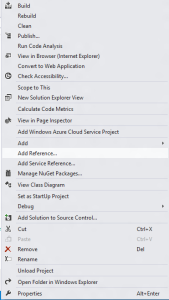
  14. Search for Azure and check Azure.StorageClient and click okay
  15. Edit IService1.cs
  16. Edit Service1.svc
  17. Right click your project and choose publish
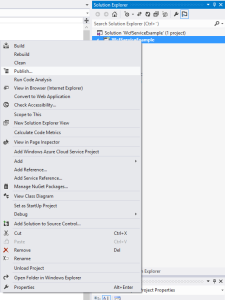
  18.  Choose import and then browse to the file you downloaded from Azure Dashboard
  19. Now just click publish
  20. Enjoy of your new service
email

Tags: , , , ,

Trackback from your site.

Comments (5)

  • Consuming WCF service with Windows 8

    |

    [...] The reason why I have been writing so much about creating WCF services is that they are very easy to consume and use on Windows 8 application. So I will show you how to create Windows 8 application that uses the WCF service that was created here. [...]

    Reply

  • Consuming WCF Service with Windows Phone

    |

    [...] The reason why I have been writing so much about creating WCF services is that they are very easy to consume and use on Windows Phone application. So I will show you how to create Windows 8 application that uses the WCF service that was created here. [...]

    Reply

  • Image uploading WCF service

    |

    [...] At start create a new WCF service in .net 4.0 and add Azure reference to it. You can follow the guide at here. [...]

    Reply

  • Santosh

    |

    Hi,
    Really good article for beginners. I was testing to run my sample wcf app into to azure but it failed giving timeout error. the service is a very simple one with just default methods that come with template.
    The problem was when I ran my azure web site http://testwcf.azurewebsites.net, its running successfully. But during publishing, if I validate connection its failing. Later when I tested by pinging the site, it gave request timeout error. Not sure how to troubleshoot the scenario. Need H-E-L-P…

    I am using the free version account. I hope it shouldn’t create any problem.

    Thanks.

    Reply

    • Tapanila

      |

      Hey,

      Could you provide a screenshots how you got into that problem?
      Then I would be probably able to help you.

      Reply

Leave a comment