Running multiple wordpress blogs on Azure Websites
Currently on Azure Websites you get 1 free MySQL database.
To install a second WordPress blog you need to use the same database.
That itself is easy but when you try to open your new WordPress blog it doesn’t work.
Here’s how to fix the situation.
- Open the Azure dashboard and choose Web Sites
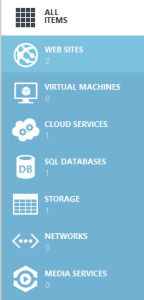
- Open your web site

- Reset your Deployment credentials if you don’t know your ftp password. Rest of the information you can get from here
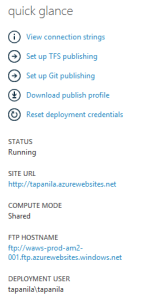
- open ftp access to your website I used WinSCP
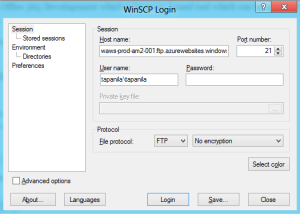
- Navigate by double clicking “site” and then “wwwroot” and open wp-config.php
- Change $table_prefix to something else than default ‘wp_’

- Save the file
- close the WinSCP
- Open browser and go to http://yourwebsite.azurewebsites.net/wp-admin/install.php
- Complete WordPress installation and enjoy
Tags: mysql, Windows Azure, Windows Azure Websites, wordpress
Trackback from your site.
Comments (8)
Håkan
| #
In general, for security reasons, you should never use the default database prefix in any case
!
Reply
Windows Azure Community News Roundup (Edition #29) - Windows Azure - Site Home - MSDN Blogs
| #
[...] Running Multiple WordPress Blogs on (Windows) Azure Websites by @TapanilaT (posted July 23) [...]
Reply
Scott Stauffer
| #
Thanks… I just ran up against this issue, and happy to see the solution here!
Reply
Marko
| #
Thanks, it worked well
Reply
Tips and Tricks for running WordPress on Windows Azure
| #
[...] [...]
Reply
fortetg
| #
Thanks for the helpful post! Do you mind if I share your steps on my blog? With credit of course : )
Reply
Tapanila
| #
Of course not. If you credit me it’s totally fine.
Reply
Multiple WordPress Websites on Windows Azure Platform | MadsJensen.net
| #
[...] [...]
Reply
